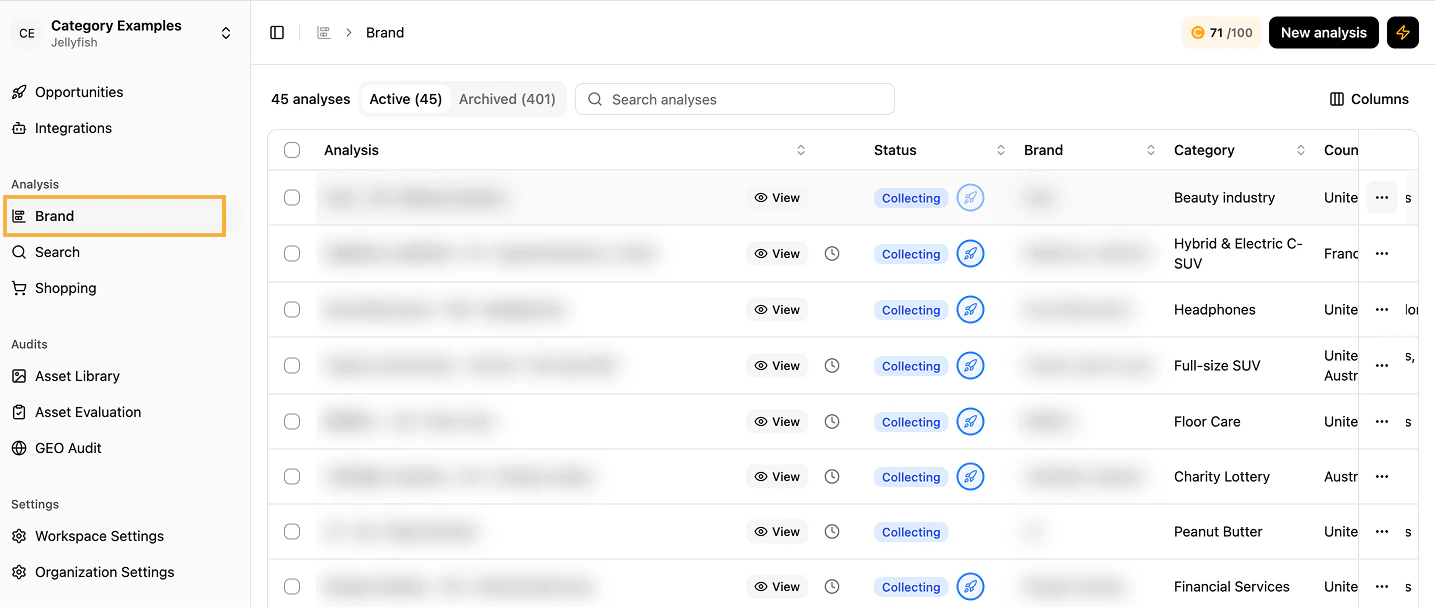
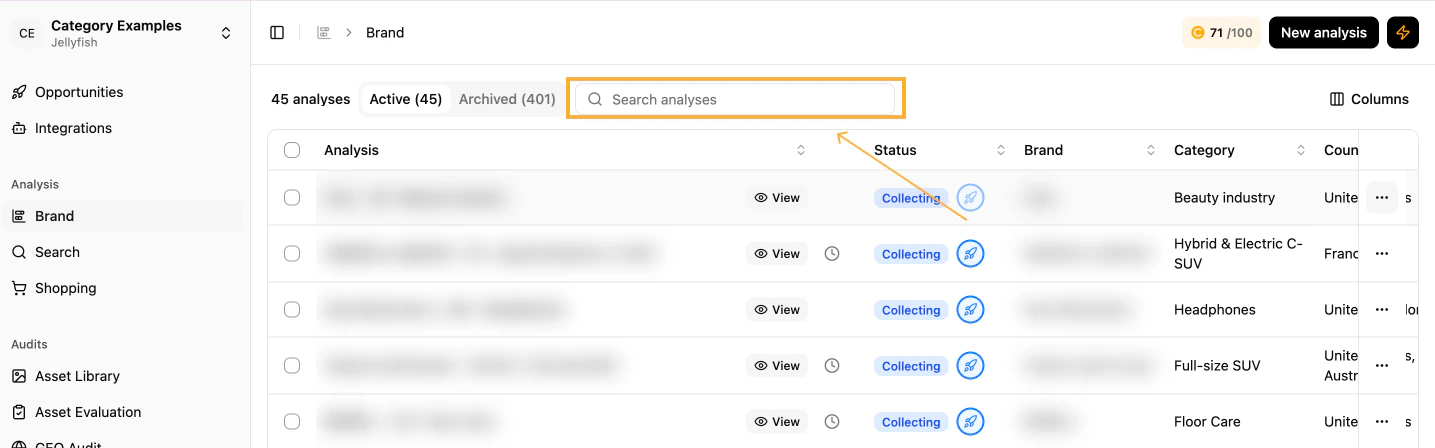
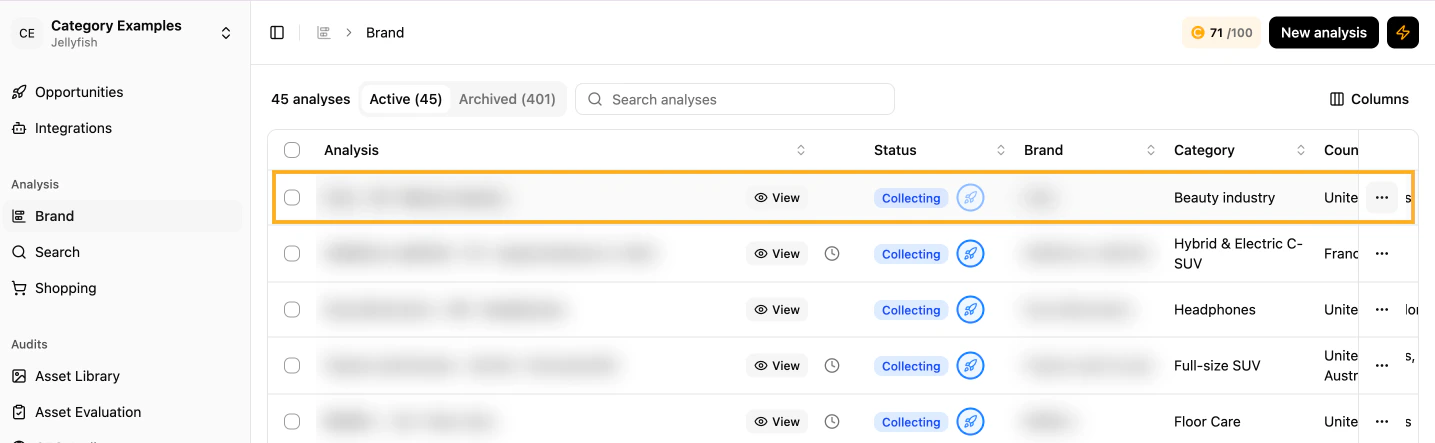
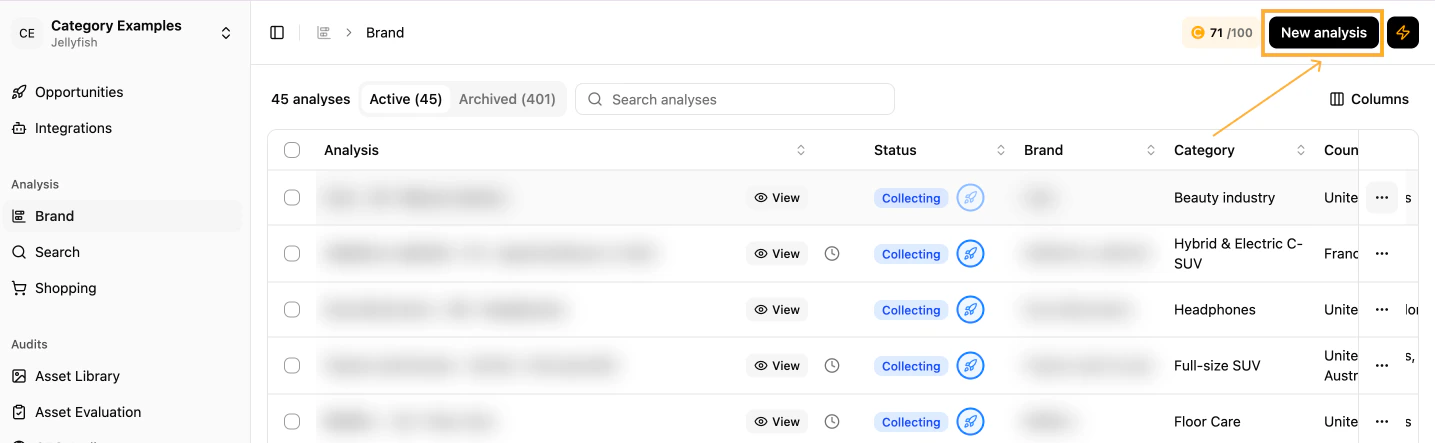
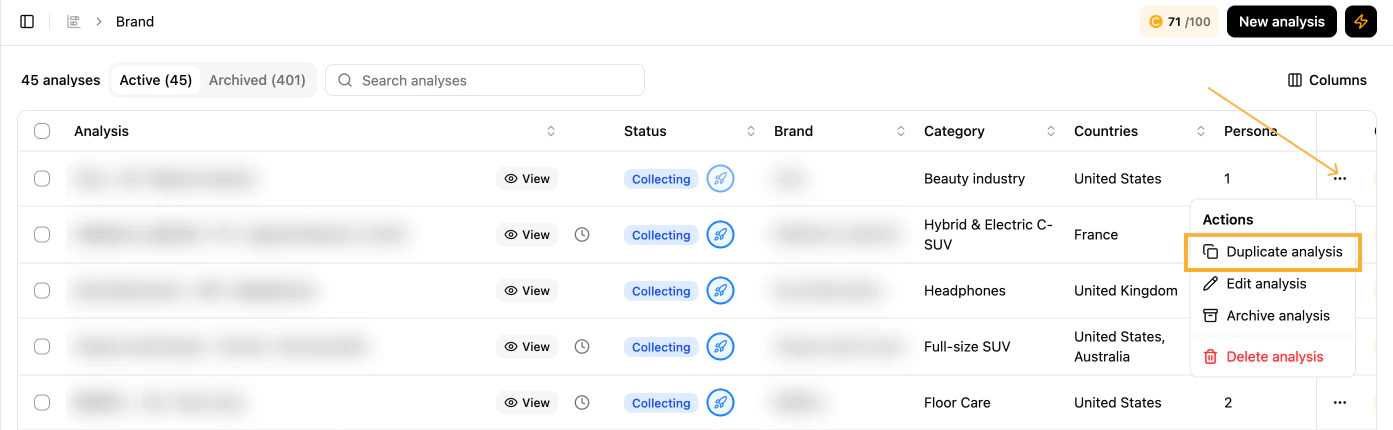
Once you log in, you land on your workspace. If you have multiple workspaces, they appear in alphabetical order. Each workspace contains its own analyses. Switch between workspaces using the dropdown next to the workspace name.
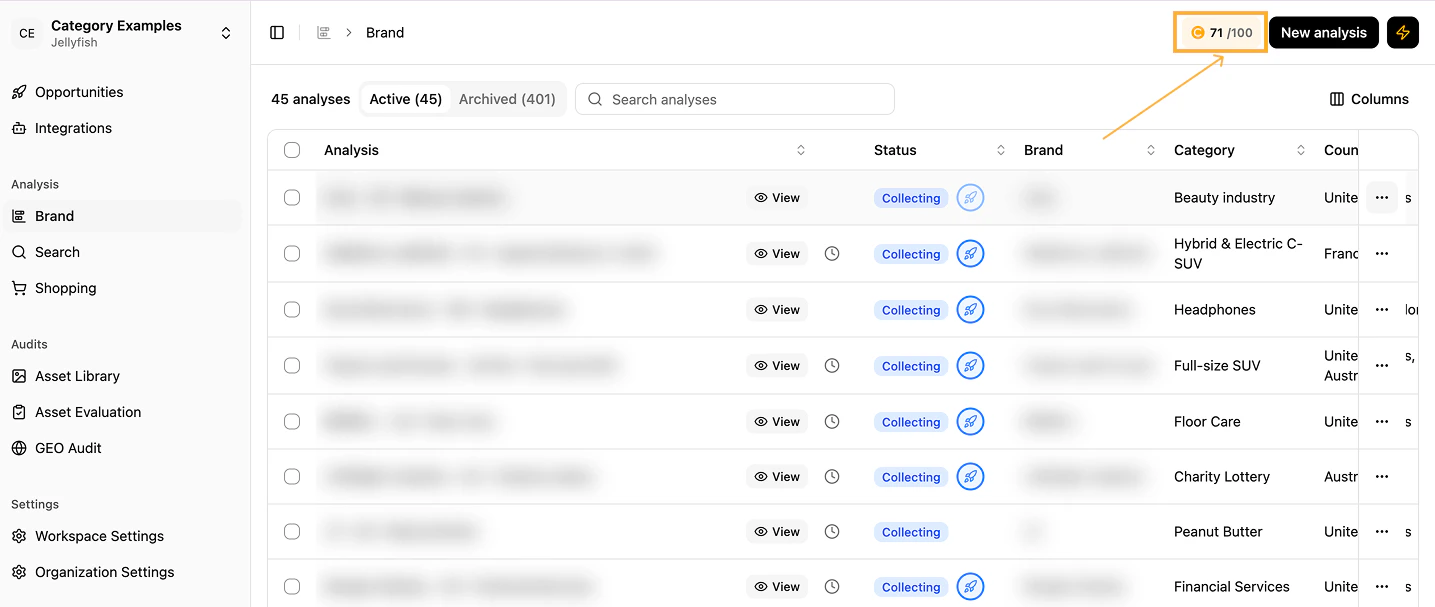
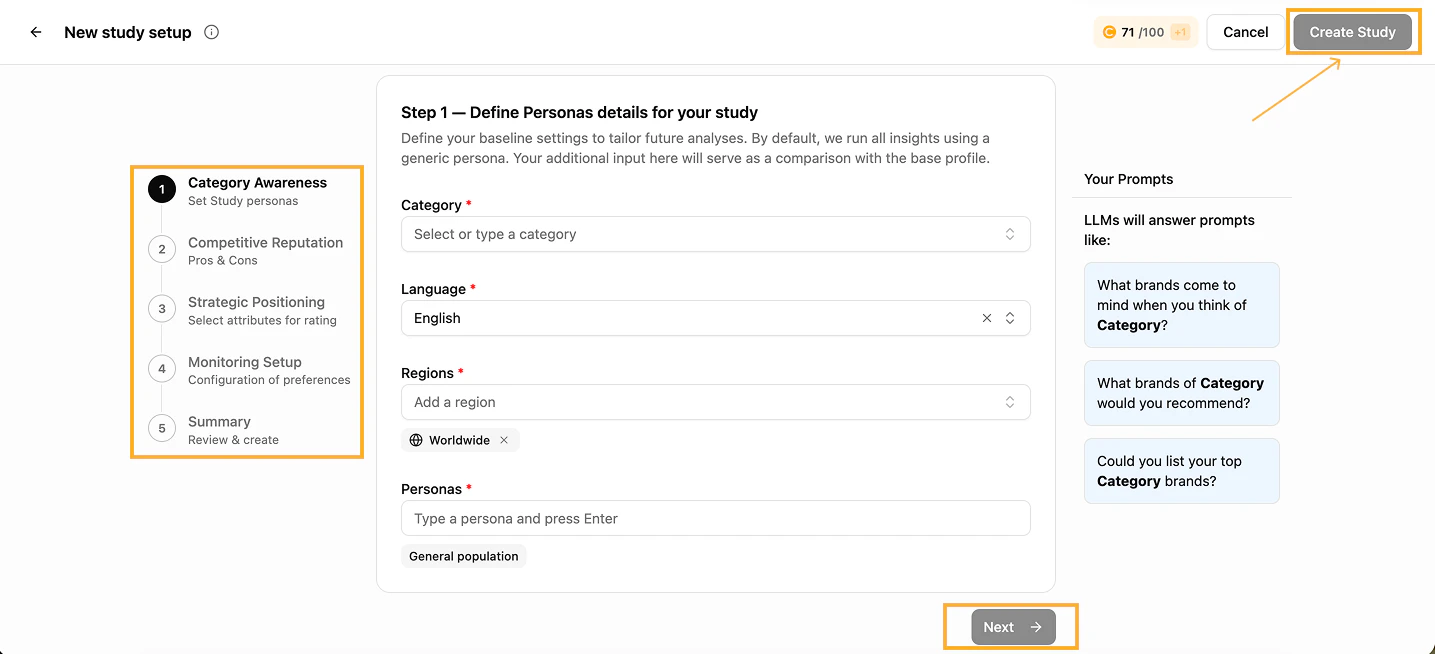
Each workspace has a credit balance based on your plan or contract. Credit usage depends on # regions × # personas configured per analysis. Need more quota? Contact your Customer Success Manager.
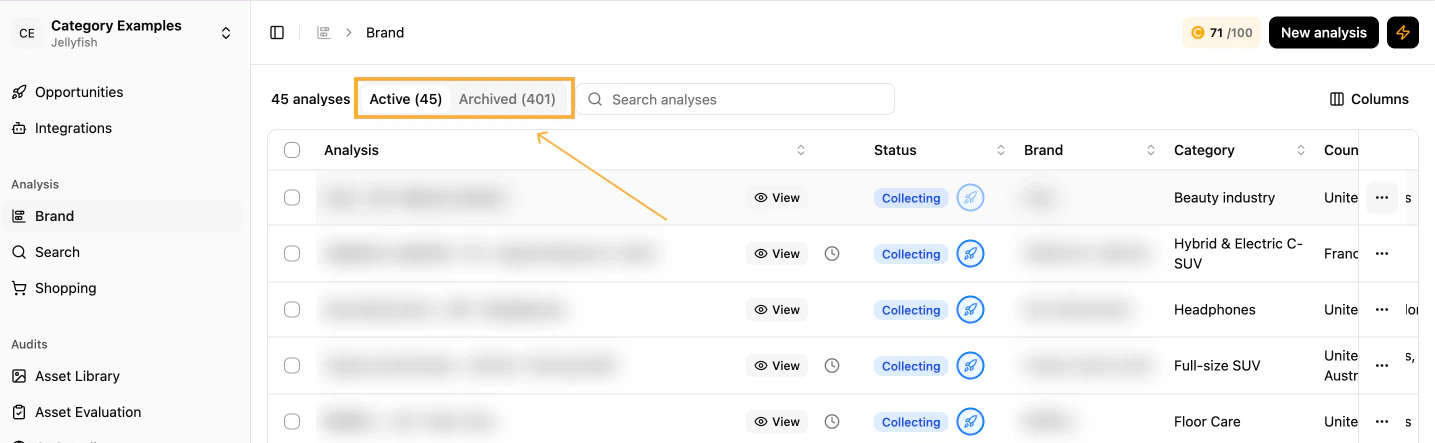
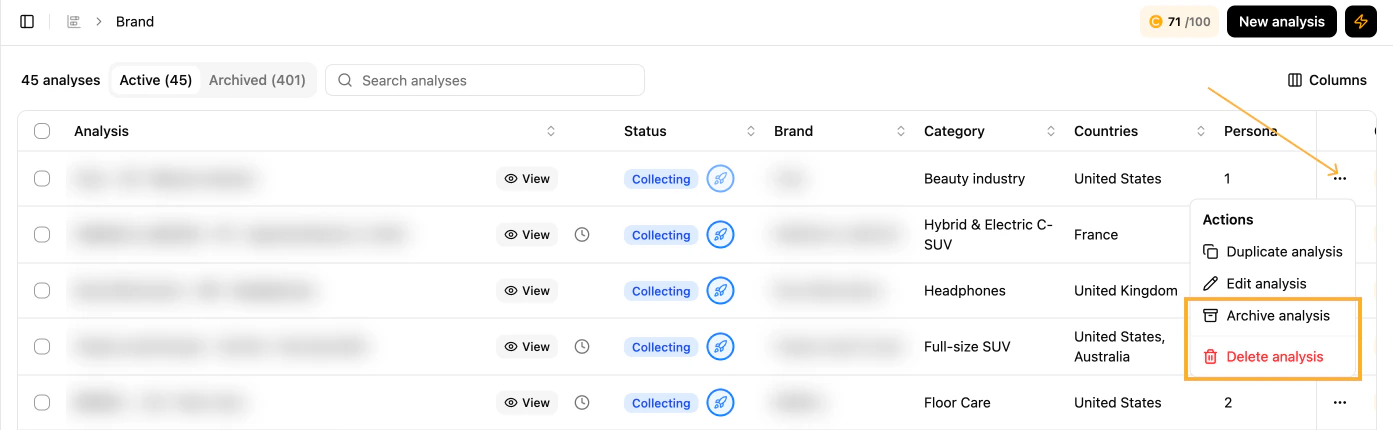
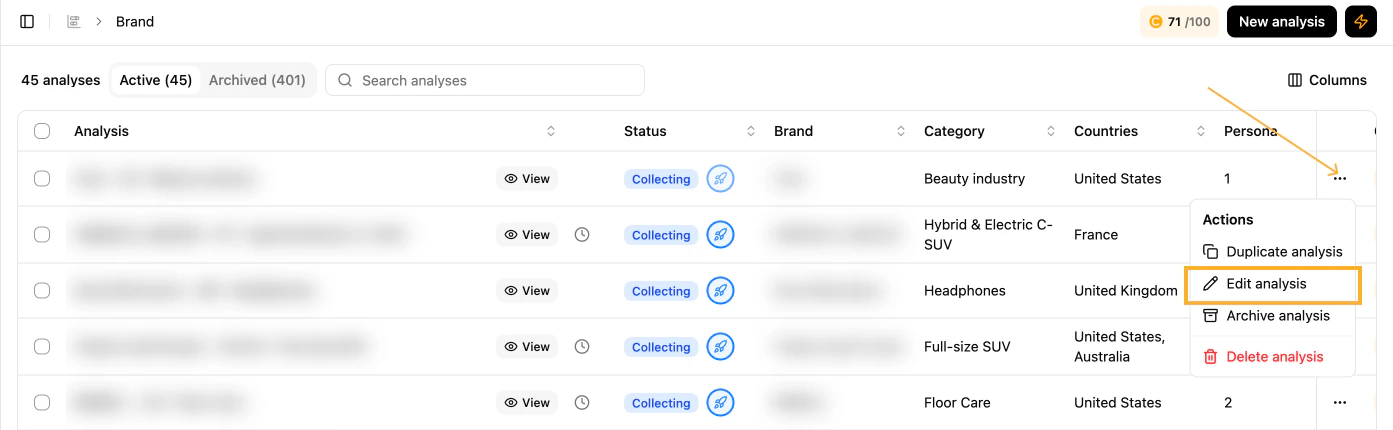
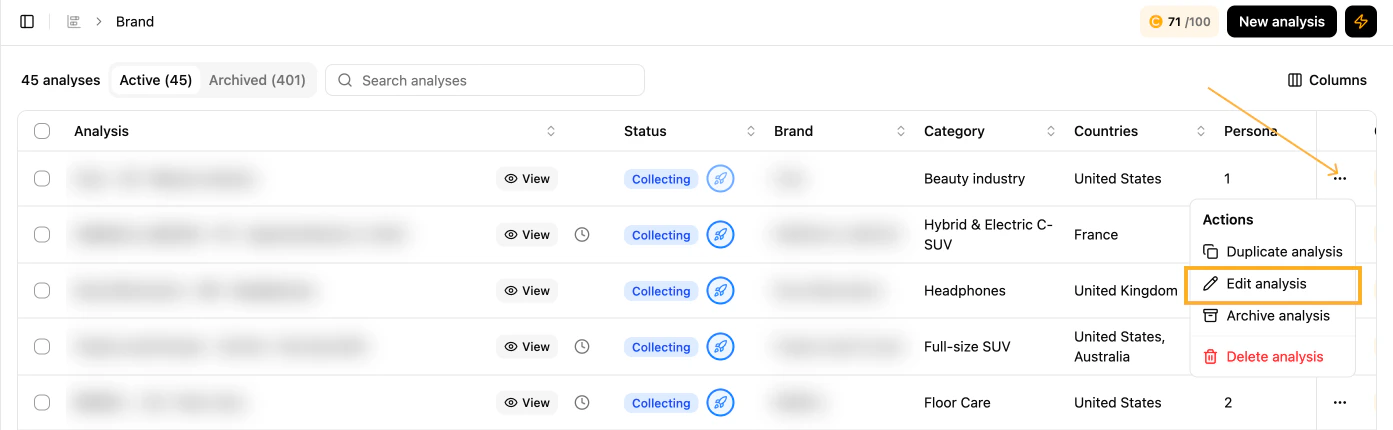
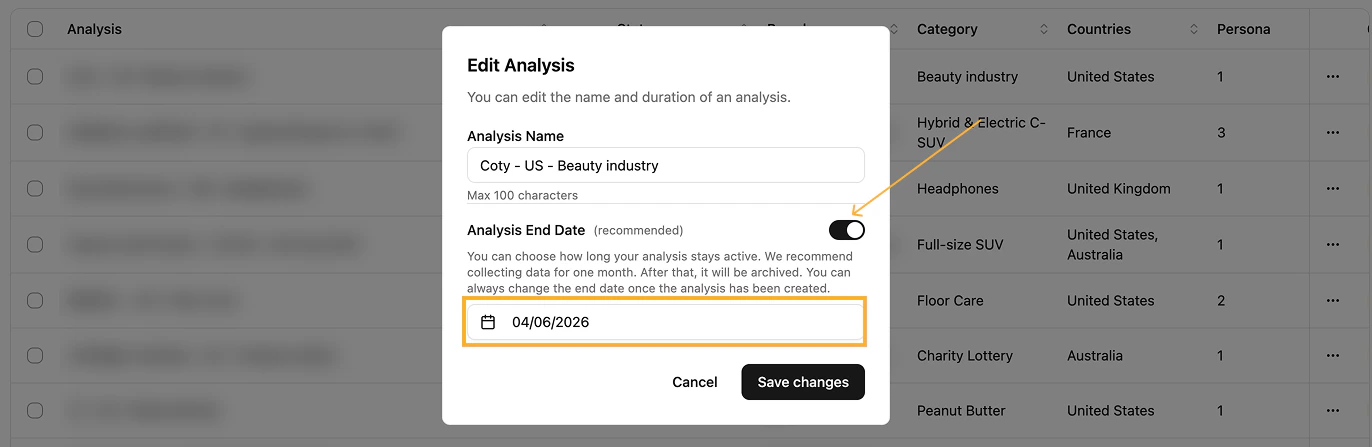
The end date marks when data collection stops. The analysis is then automatically paused until manually unarchived; no data is backfilled for the paused period. The timer can be edited from Edit Analysis alongside the analysis name.
AI category & brand perception — Category perception and Brand Perception (based on custom attributes)
Sources(beta) — most influential sources AI models reference for your category
Smart Audiences(beta) — most relevant customer personas per category, based on advanced LLM understanding
You can review the configuration of any analysis via the Show Configuration toggle in the top-right corner.Filters are available for time period, individual LLMs, regions (when more than one) and personas (when more than one).
Wait at least 2–3 weeks of data collection to obtain stabilised data ready for insights.